
How to Install and Configure Firesage Checkout
Firesage Checkout is a flexible, powerful, simple solution that lets you accept payments and deliver your digital products... hosted on your own site. Implementing fsCheckout on your site is relatively simple, follow us now as we detail the required steps to get up and running on our fictional site, hexicle.com.
Copy and Install Components
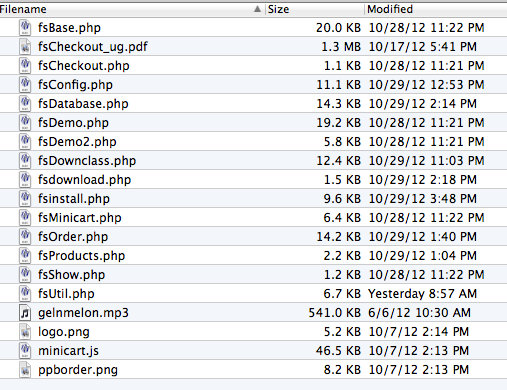
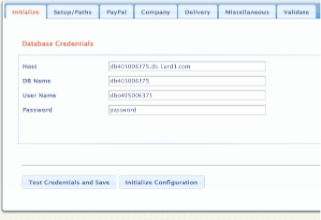
Firesage Checkout is designed to integrate smoothly into your existing site, so let's begin by copying the fsCheckout files directly to your web server. We start by copying the contents of the zip file into a single folder named firesage on our server. Let's open the main configuration file in our browser, in this case the address is http://firesage.com/firesage/index.php. Take a look at the following screenshot, which provides a wizard driven configuration process, including database config, PayPal account entries, and other various configuration options available in Firesage Checkout.
Add Product Information and Prepare Digital Downloads
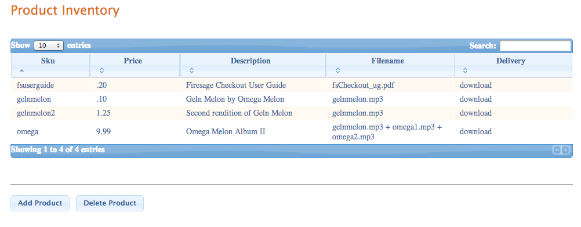
Let's add a couple of products to the system, including sku, price, description, name of the file to be downloaded, and whether you want the product to be downloaded or displayed after purchase. The following shows the eb based interfaced designed to quickly and effectively manage your digital inventory.
For each product, make sure you copy the associated file to the download folder specified during installation.
Add Buy Now Links to Pages
Now that we have the back-end properly configured, it's time to add the necessary components to our web pages to sell the individual products. We are using PHP to inject the necessary components into our page, so we need to start by including the fsCheckout and javascript items on the page:
	<?php
	   require_once('firesage/fsCheckout.php');
	   $fsCheckout->PrintJS();
	?>
All we have left to add are the product buttons for the items we want to sell! The following lines are the actual code required to place two buttons on the page, one for an .mp3 file called Gel'n Melon, and a second for the fsCheckout User Guide:
	<?php $fsCheckout->PrintButton('gelnmelon'); ?>
	<?php $fsCheckout->PrintButton('fsuserguide'); ?>
Which activates the PayPal components and places our buttons on the page →

Note, the price, description, and filename are all pre-configured as part of the product detail, so the buttons produced with this code will handle the entire process... from payment all the way through delivery of the file to the customer.
Order Confirmation and Product Download
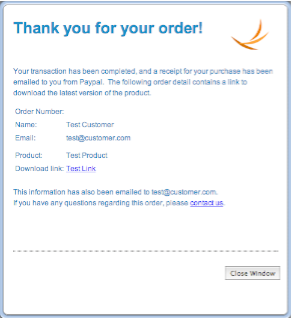
Firesage Checkout also provides the automated delivery of your digital product without any user interaction. The following Order Confirmation window is displayed upon successful payment, which looks and feels like it is being delivered by PayPal. This window provides the basic order information and download links to each of the purchased products. Similar to other components, this window and it's contents can be customized for your needs.
Automated Payment and Digital Delivery System
Firesage Checkout is a flexible solution which offers both payment and digital downloads in a single product. While the installer simplifies the installation and configuration of fsCheckout, the behavior and look-and-feel are still fully customizable to fit your needs. Take a look at Firesage Checkout... you'll be glad you did!